Shopify “not tracked” vs “not stocked at this location”: what to do
Why a variant shows as not tracked or not stocked at a Shopify location, how to tell the two apart, and what a receipt or stocktake can and cannot change.
A pallet arrives at the new warehouse. You open the purchase order to receive it and the preview says, for three of the twelve lines, that the item does not track inventory in Shopify, and for four more that it will start stocking them at this location before it adds anything. The other five look normal. Nothing is wrong with the delivery. Shopify simply knows those seven variants differently from the rest.
That scene is hypothetical, but it is the most common receiving surprise after a store adds a second location, and the two messages mean different things. One is a setting on the variant. The other is a relationship between the variant and a location. Fix the wrong one and you lose an afternoon. This post explains the states a variant can be in at a given location, how to tell them apart in the Shopify admin, and what Restock Ops does with each when you receive, count or reorder.
Three states that look the same on a shelf
Shopify's inventory tracking setup guide covers the checkbox behind the first state. The guide to assigning inventory to locations covers the Edit locations control on the product page that fixes the second. A fourth thing gets confused with both: a location that is not active for fulfilment. Shopify announced in its changelog that inventory is tracked and visible at locations that are not active for selling or fulfilment, so a variant can be stocked and counted at a location that never ships an order. That is a location setting rather than an inventory one, and it does not stop a receipt or a count from working.
- Not tracked. The variant's Track quantity checkbox is off. Shopify holds no number for it at any location; it can be sold indefinitely and never shows as sold out. Nothing you receive or count can be written to a quantity that does not exist.
- Tracked, but not stocked at this location. The variant tracks quantity, but it has never been assigned to the location you are standing in. Shopify has a number for it at your other locations and no inventory level here at all. This is not the same as zero. Zero is a value; not stocked is the absence of one.
- Tracked and stocked, quantity zero. The ordinary empty shelf. Shopify has an inventory level at this location and it reads 0 on hand. A receipt adds to it and a count corrects it.
How to tell which one you have
- Open the product in the Shopify admin and scroll to the Inventory section. If Track quantity is unticked, you are in the first state and every location is affected at once. Decide here whether the variant should be tracked at all before you touch anything else.
- If it is ticked, look at the locations listed under the quantities. A location that is missing from the list is the second state. Click Edit locations to see which of your locations the variant is stocked at, and tick the one you are receiving into if the variant belongs there.
- If the location is listed and reads 0, that is the third state and there is nothing to fix. Receive the delivery or count the shelf as normal.
- Decide what the variant is. A display fixture, a service, a sample you never sell: leave it untracked and let the receipt record it on the PO. A product you will sell from this location: it needs to be tracked and stocked before any count or receipt means anything, because a count of an untracked item is a note, not an adjustment.
What a receipt does with each state
Restock Ops reads the inventory level for every line on a purchase order at the PO's destination location before it writes anything, and the receipt preview says which state each line is in. Lines that are tracked and stocked are the normal case: available goes up by the received quantity with the reason “received”, and if the PO's on-order units were projected as incoming, that projection comes down by the same amount.
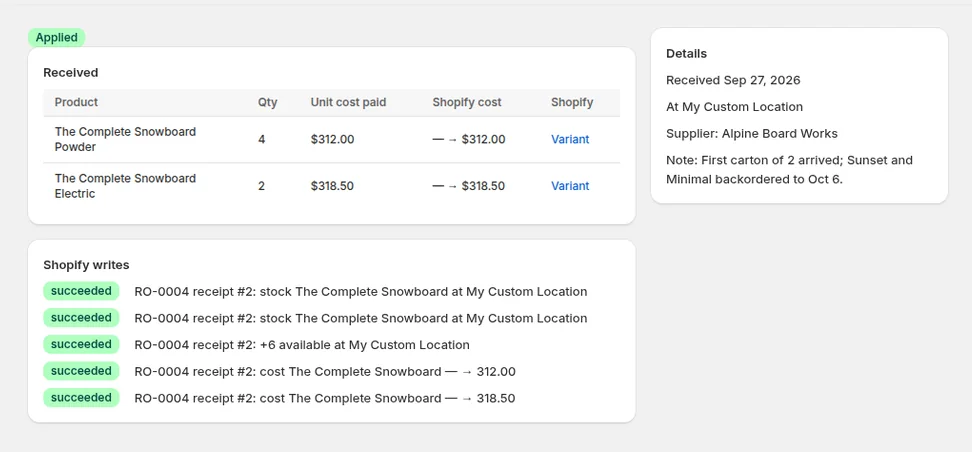
Lines that are tracked but not stocked at the destination are activated first. The preview lists this as its own write, along the lines of “Start stocking 4 items at Warehouse B”, and the receipt runs that activation before the quantity adjustment using Shopify's inventoryActivate mutation. Afterwards the variant is stocked at that location with the received quantity available. It is the same end state as clicking Edit locations and then adjusting by hand, in one step instead of two, and it is why a PO to a brand-new location does not need every product edited in advance.
Lines that do not track inventory produce a warning in the preview: the item doesn't track inventory in Shopify, so the received quantity is recorded on the PO only. The receipt still records the quantity, the unit cost and the line, so the PO can close once fully received. No Shopify quantity adjustment is made for that line, and the Available column says not tracked. Unit-cost updates are separate: depending on your cost settings, those can still appear in the preview even when every line is untracked.
The app will not turn tracking on for you, and that is deliberate. Switching a variant from untracked to tracked changes how it sells on every channel, including whether it can go out of stock online, and it should be a decision someone makes on the product page rather than a side effect of opening a box. Make the decision first, then receive.
Counts, incoming and the reorder report
A stocktake is the other place these states surface. When you add a variant to a count, Restock Ops reads its level at the count's location. Untracked variants are labelled on the count sheet as not tracked and never adjusted; you can still type a counted figure for your own records, and applying the count leaves them alone. A tracked variant that is not stocked at the location shows an expected quantity of 0, and the count cannot stock it, because a stocktake adjusts quantities that exist rather than creating inventory levels. The app applies a count as a single Shopify adjustment, so if Shopify rejects any line the count reports that nothing was changed; a variant that was never stocked at that location is one way to hit that. Receive the item there, or add the location on the product page, and then count. The comparison of POS stock counts and stocktakes goes into what a count does and does not write.
Incoming has its own prerequisite. When a PO is marked ordered and the shop has incoming projection switched on, only lines that are tracked and already have an inventory level at the destination are projected as on order. If you want those units shown as incoming before delivery, stock the variant at the destination before marking the PO ordered. Do not assume a later receipt backfills an earlier skipped projection. The post on incoming quantities left behind by Stocky explains the difference between an app's PO records and Shopify's incoming quantities. The reorder report marks rows for untracked variants as well, since on hand and incoming are not meaningful for an item with no tracked quantity; review the tracking setting before trusting a reorder suggestion.
A worked example
Picture a homewares shop, call it Larch & Co, that opens a second store and writes its first purchase order to the new address: twelve lines from one supplier. Seven of the variants were created years ago with tracking off, because the previous owner never counted candles. Four are tracked but have only ever been stocked at the original shop. One is a new SKU added last week with both locations ticked.
The first receipt preview warns that seven items do not track inventory and offers to start stocking four. If the owner receives as-is, the four and the one go into the new store's quantities correctly, the PO records all twelve, and the seven candles remain invisible to Shopify's stock at both shops. That might be fine for a week. It is not fine once the online store starts selling candles from the new location and nothing ever reads as sold out.
The better order of operations is to turn on Track quantity for the seven and record a real opening count at the original shop. Then decide which variants belong at the new store. You can stock them there through Edit locations before receiving, or let the receipt preview list the required activations. Once tracking is enabled for all twelve, all twelve can receive quantity adjustments at the destination. The PO is the same; the product settings are what make the receipt mean something. If the delivery turns up short on top of all that, the partial receiving post covers receiving in two halves without losing the thread.
When to leave a variant untracked on purpose
Not everything that arrives on a purchase order belongs in stock. Shop fittings, bags and tissue paper, a sample range you are testing, a service the supplier bills alongside the goods: these are real PO lines with real costs, and they need to be on the document so the invoice reconciles, but a tracked quantity for them is noise. For those, an untracked variant and a receipt that records the quantity on the PO only is the right outcome, not a limitation to work around. The warning in the preview is there so you can confirm that is what you meant.
The habit worth building is reading the preview before pressing receive, every time, and treating a not tracked or start stocking line as a question rather than an error. Restock Ops is free to start, and the receipt preview is the quickest way to see which of your variants are in which state at a location before anything is written to Shopify.
FAQ
What does “not stocked at this location” mean in Shopify?
The variant tracks quantity, but it has never been assigned to that location, so Shopify has no inventory level for it there. It is different from a quantity of zero. You add the location with Edit locations on the product page, or an app can activate the item at the location through the Admin API, which is what a Restock Ops receipt does before adjusting the quantity.
Can an app receive inventory for a variant that doesn't track quantity?
It can record the receipt, but it cannot adjust an untracked quantity. Restock Ops records the received units and cost on the purchase order, warns in the preview, and skips Shopify quantity adjustments for that line. Unit-cost updates may still apply, depending on your settings. Turn on Track quantity first if the item should be counted.
Will receiving a purchase order stock a product at a new location?
With Restock Ops, yes, for variants that already track quantity. The receipt preview lists a separate write to start stocking those items at the destination, and the receipt activates them before adding the received units. Variants with tracking turned off are not activated and are recorded on the PO only.
Does a stocktake fix a product that isn't stocked at the location?
No. A count adjusts quantities that already exist at the location; it does not create an inventory level. Stock the variant at that location first, either on the product page or by receiving it there, and then include it in a count. Untracked variants on a count sheet are labelled as never adjusted and are skipped when the count is applied.
Try it on your store. Restock Ops adds purchase orders with partial receiving, supplier notes, cost history, barcode labels, scanner stocktakes and a reorder report on top of Shopify inventory. From $19/month, 14-day free trial.