Shopify POS stock counts, Quick count or a stocktake app: which to use
Shopify POS can now run reviewed stock counts (28 Sep 2026). How it differs from Quick count and a scanner stocktake in Restock Ops, and when to use each.
On 28 September 2026 Shopify shipped the counting feature that Stocky users had been asking for since February: a stock count that head office plans in the admin, staff perform on the POS device, and someone with the right permission reviews before any quantity changes. It is a real improvement over Quick count, which writes to inventory the moment staff hit submit, and it closes one of the gaps we listed when Stocky shut down.
It also means a POS Pro store now has three ways to count: Quick count, the new stock counts, and a stocktake in an app like Restock Ops. They are not interchangeable. This post lays out what each one does, where it stops, and a routine that uses them together without anyone counting the same shelf twice.
What Shopify shipped
Shopify's changelog describes the flow in three parts. In the admin, a user with the required permission creates a stock count, picks the location and chooses the products to include. The count appears under Products > Stock counts in the POS app at that location. Staff with the inventory permission open it and record what is on hand by scanning barcodes or typing quantities. When they finish they submit it for review, and submitting does not change inventory. Back in the admin, someone reviews the completed count and the discrepancies, then approves it and Shopify applies the adjustments. Shopify keeps a record of what was counted, when, and by whom.
The help centre adds the operational details. Stock counts are only available to locations with a POS Pro subscription and need POS 11.16 or later. Performing a count is a separate permission from creating or reviewing one, which is the point: you can hand counting to a Saturday casual without giving them the ability to change inventory. If a product's inventory changes during the count, for example because it sells at the till, Shopify marks that product so the reviewer knows the baseline moved. Staff can still count it and request review.
Three ways to count, side by side
Quick count has been in POS Pro for a while and is the fastest of the three for a single shelf. Stock counts add planning and review. A Restock Ops stocktake runs in a browser with a cheap USB or Bluetooth scanner, which puts it in the back room or at a laptop rather than on the shop floor. Here is how they compare on the things that matter when you are deciding which to use on a given day.
| Quick count | Shopify stock count | Restock Ops stocktake | |
|---|---|---|---|
| Who starts it | Staff, on the POS device | Admin user creates and schedules it; staff perform it | Anyone with app access, in the browser |
| Where you count | POS app, phone or tablet camera or scanner | POS app at the assigned location | Any laptop or tablet with a keyboard-wedge scanner |
| Scope | Whatever staff scan, up to 1,000 variants per session | Products chosen in the admin when the count is created | Location plus a collection, vendor, tag, product type or the whole catalogue |
| Review before quantities change | No, adjustments sync on submit | Yes, approve or reject in the admin | Yes, variance review with notes and per-line exclude |
| Protection if stock moves mid-count | None | Product is flagged for the reviewer | Compare-and-set: the apply aborts on any line whose on-hand moved, nothing is written |
| Undo after applying | Manual reversal in inventory history | Manual reversal in inventory history | One click, written as a linked correction |
| Requires POS Pro | Yes | Yes, per location, POS 11.16+ | No |
| Audit trail | Inventory adjustment changes report | Who counted, when, who approved | Write log with the adjustment, the user and the undo |
When Quick count is still the right tool
- A customer asks for a size you think you have and the shelf says otherwise. Scan, fix, move on. Nothing else is that fast.
- End-of-day spot checks on fast movers by a trusted manager who is allowed to change inventory anyway.
- Any count where the person counting is the person who would approve it. A review step with one participant is theatre.
When a Shopify stock count is the right tool
- Floor counts by staff who should not be able to edit inventory. Permission separation is the feature, and nothing else in Shopify offers it.
- Counts that need to be scheduled and assigned, so a store manager in another city can see that the Tuesday count was done and by whom.
- Stores that count on the POS device and have no scanner or laptop in the back. The count lives where the staff already are.
- Multi-store retailers who want the same count template pushed to several locations and reviewed centrally.
When a Restock Ops stocktake is the right tool
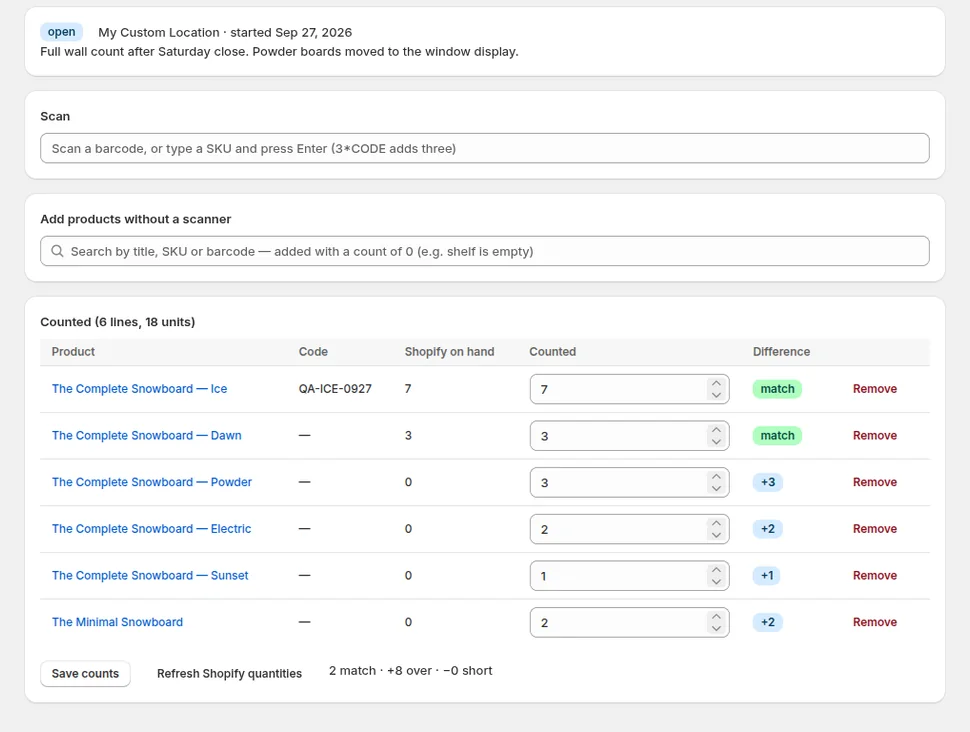
Our stocktake predates Shopify's and was built for a different place: the back room, the stockroom, the small warehouse, where a laptop and a USB scanner sit on a bench and the person counting has cases to open. The scan field accepts a quantity prefix, so 12*CODE adds a case without twelve beeps. Items that are scanned but not in the scope show up as unexpected, which is how you find the stock that was shelved in the wrong section.
The review screen is built for variances rather than for a list: it shows only lines where counted differs from expected, sorted by the size of the difference, with a note field and an exclude toggle per line so you can leave a line out of the write if you want to recount it first. The apply is a single compare-and-set adjustment with the reason cycle_count_available, which means that if anything sold between the snapshot and the apply, the write stops and tells you which lines moved rather than overwriting them. That is stricter than Shopify's flag-and-proceed model, and it is deliberate; we wrote about why in on hand vs available: what a stocktake should set.
It also does not need POS Pro. A store on the Basic plan with a single location, or a brand that sells online and keeps stock in a garage, gets the same reviewed count. And the undo is one click: the reversal is written as a correction adjustment linked to the original, so the inventory history explains itself.
A routine that uses all three
- Pick the counting owner for each area. Sales floor belongs to Shopify stock counts, performed by staff on POS and approved by the manager. Back room and overstock belong to a Restock Ops stocktake with a scanner, run by whoever receives deliveries. Quick count is for the manager's ad-hoc fixes and nothing else.
- In the admin, create a recurring stock count template per floor section: one for accessories, one for footwear, and so on. Keep each under a couple of hundred variants so the review is readable. Assign one section per weekday.
- In Restock Ops, run the back-room count the day after a delivery lands, scoped to the vendor you just received. The expected quantities already include the receipt, so any variance is a receiving error rather than old shrinkage, and you catch it while the boxes are still there.
- Approve the floor counts each morning before the store opens, while nothing is selling. Apply the back-room stocktake the same way; if the compare-and-set aborts because an online order shipped overnight, recount only the flagged lines and apply again.
- Once a quarter, run a full stocktake in Restock Ops across the whole location, and compare its variance report with the quarter's approved floor counts. Products that keep appearing in both are the ones to put on a weekly schedule.
- Feed the result forward. A variance that shows a product is short is also a reorder signal; open the reorder report after applying and the on-hand it uses is the one you just corrected.
What none of them do yet
- Create a stock count from an app. Shopify has started exposing inventory counts in the Admin API, but at the time of writing the mutations are in the unstable version behind a feature preview, so Restock Ops cannot push a count into Products > Stock counts for you, and we would rather wait for the stable release than build against a preview.
- Explain the variance. Shopify records who counted and the reviewer sees the difference, but no tool tells you whether the missing units were a receiving error, a mis-shelved case or theft. Our stocktake notes and the receipt-scoped count above are the closest thing to an answer.
- Count in two places at once. A Shopify stock count and a Restock Ops stocktake over the same products at the same time will both be right about the shelf and both be surprised by the other's adjustment. Give each area one owner.
The short version: Shopify's new stock counts are good, and if you run POS Pro you should use them for the sales floor starting now. Keep Quick count for the manager's quick fixes. Use Restock Ops where the count happens at a bench rather than a till, where you have no POS Pro, or where you want the write to refuse to proceed rather than flag and continue. The barcode stocktake guide walks through our side of that in detail.
FAQ
What is the difference between Quick count and a stock count in Shopify POS?
Quick count is started by staff on the POS device and its adjustments sync to inventory as soon as the session is submitted. A stock count is created and scheduled in the admin, lists specific products, is performed on POS by staff with a separate counting permission, and holds the results for review and approval before any quantity changes. Both require POS Pro.
Do I need POS Pro to run a reviewed inventory count on Shopify?
For Shopify's own stock counts, yes: they are available only to locations with a POS Pro subscription on POS 11.16 or later. A Restock Ops stocktake runs in the browser with a keyboard-wedge scanner, holds results for review and writes a single reviewed adjustment, and works on any Shopify plan.
What happens if a product sells while a stock count is in progress?
In a Shopify stock count the product is marked so the reviewer knows its inventory changed during the count; staff can still count it and request review. In Restock Ops the apply uses compare-and-set against the snapshot taken when the session started, so if any line has moved the write stops and shows you which lines to recount.
Can an app create or approve Shopify stock counts?
Not through the stable Admin API yet. Inventory count mutations exist in the unstable API version behind Shopify's physical inventory feature preview. Until they are released, counts under Products > Stock counts can only be created and approved in the Shopify admin.
Try it on your store. Restock Ops adds purchase orders with partial receiving, supplier notes, cost history, barcode labels, scanner stocktakes and a reorder report on top of Shopify inventory. From $19/month, 14-day free trial.