Shopify incoming inventory stuck after Stocky? How to clear it
Why incoming quantities linger after an app is uninstalled, how to clear a stuck incoming quantity in Shopify, and how an app should write inventory safely
A product page in your Shopify admin says 24 units are incoming. Nothing is on its way. The purchase order was received months ago, or the app that created it is gone. Shopify incoming inventory stuck like this is one of the most confusing leftovers of the Stocky era, because the number sits on the product forever, staff stop trusting the inventory card, and the usual “adjust quantity” buttons do not touch it.
This post explains what the incoming state actually is, why an uninstalled app cannot clean up after itself, how to remove a stuck incoming quantity today, and how Restock Ops writes inventory so that every unit it projects as incoming is tied to a document that can clear it.
What merchants ran into
Two reviews on the Stocky review page describe the two halves of the problem. In September 2024 a merchant wrote: “Although uninstalled, it still ads stock quantities under product ‘Incoming’”. In January 2025 another, reviewing Stocky's transfer handling, wrote that inventory “doesn't balance to 0 when transferring”, with quantities left drifting between the sending and receiving locations. Both are symptoms of the same design question: when an app moves units between inventory states, what happens to the units it has not finished moving?
With Stocky shut down on 31 August 2026 (Shopify Community), any incoming it left behind will not resolve itself. It also matters for whatever you install next.
Why it happens: incoming is a real state, but no one owns it
Shopify tracks several inventory states per variant per location. Its help centre defines incoming as “inventory that's on its way to your location from transfers, purchase orders, or apps”, not available to sell until received; available as sellable stock that “doesn't include inventory that's considered Incoming”; and on hand as the sum of committed, unavailable and available (Understanding inventory states). The same page says you can edit on hand and available in the admin. Incoming is different: it comes from a transfer, a native purchase order, or an app, and it is meant to be cleared by whichever of those receives it.
For native transfers Shopify handles the lifecycle: marking a transfer in transit adds incoming at the destination, and receiving it converts the accepted units to available (Creating and managing shipments for inventory transfers). For apps, Shopify only provides the primitive. The Admin API's inventoryAdjustQuantities mutation lets an app add or subtract from a named state (`incoming`, `available` and so on) with a reason code and an optional reference document URI. Whether those adjustments ever balance to zero is entirely up to the app's own bookkeeping.
Now uninstall the app. Shopify's offline access token documentation is explicit that tokens are revoked when an app is uninstalled, and the app/uninstalled webhook fires after the fact. So an app cannot reach into your store to reverse its own incoming adjustments once you have removed it; it needed to have done that before, and Shopify does not do it on the app's behalf. Whatever incoming was outstanding at that moment is frozen on the product.
The transfer complaint has a sibling cause. Any tool that implements a transfer as two independent writes (“subtract 10 at store A”, “add 10 incoming at store B”, later “convert incoming to available at B”) can be interrupted between steps by a network error, a rate limit or a closed tab. If it does not check what actually landed and retry or reverse, the two locations no longer sum to what they did before.
How to clear stuck incoming inventory in Shopify today
There is no “set incoming to zero” button in the admin. What works depends on where the incoming came from.
- Open the product, then the variant, and look at the inventory card for the location showing incoming. Click through to see which transfers or purchase orders are feeding it (Understanding inventory states).
- If it is a native transfer or PO still open, receive it (accepting or rejecting the outstanding units) or cancel it. The incoming clears as part of that workflow (Creating and managing shipments for inventory transfers).
- If it came from an app that is still installed, go back to that app and close, cancel or receive the document it created. Do this before uninstalling anything.
- If the app is already gone, the adjustment is orphaned. Stocky itself can no longer be installed (Shopify Help Center), so for Stocky leftovers the remaining route is Shopify Support: give them the variant, location and quantity and ask them to correct the incoming state, since merchants cannot adjust it directly.
- Once incoming is clear, do a physical count of the affected products and set on hand to match, so that available is right as well.
How Restock Ops writes inventory so this does not happen
Restock Ops was designed around the principle that Shopify stays the source of truth and every write is tied to a document. Concretely, in the current build:
- Incoming is opt-in. By default a Restock Ops purchase order does not touch Shopify's incoming quantity at all; the on-order figure lives on the PO and in the reorder report. If you want “on order” to show on the product, turn on incoming projection in Settings.
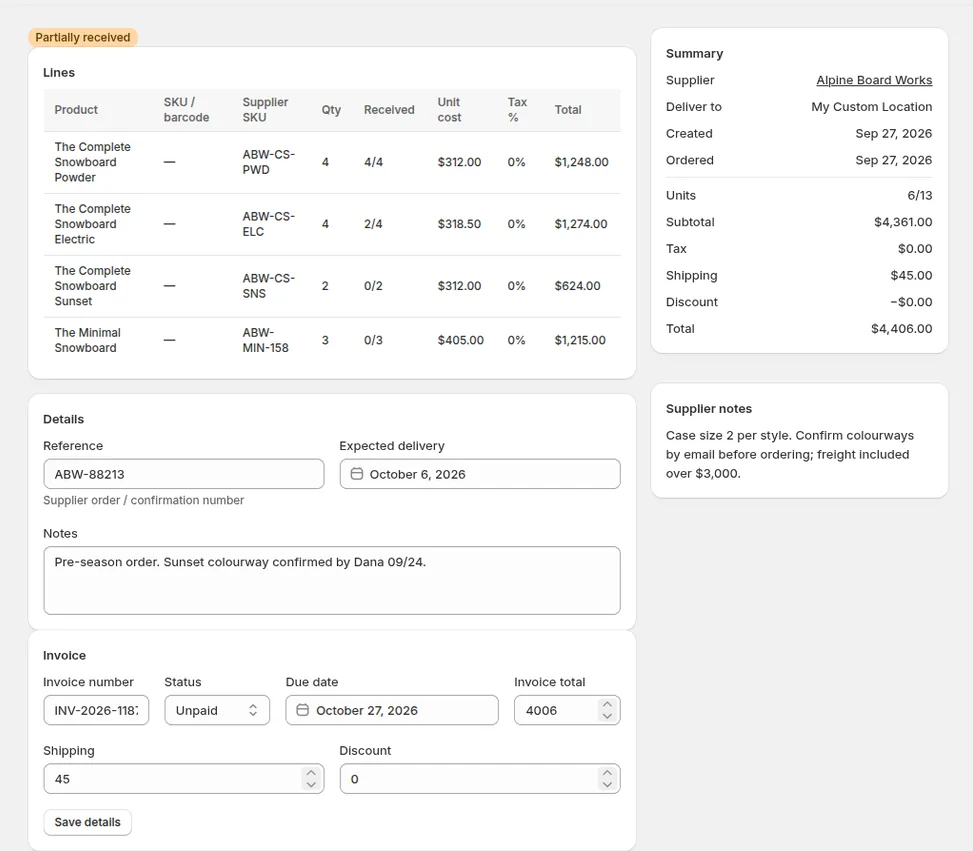
- Every projection has a reference. When projection is on and you mark a PO as ordered, the outstanding units are added to `incoming` at the destination with the reason `movement_created` and a reference URI that points at that PO. Each receipt adds what arrived to `available` (reason `received`) and subtracts the same units from `incoming` (`movement_received`), as two logged adjustments carrying the same receipt reference. Closing or cancelling the PO removes whatever is still projected (`movement_canceled`). Undoing a receipt puts the units back. There is no path that leaves incoming without a PO that can clear it.
- Preview, then write, then log. You see the exact per-line changes before confirming. Each Shopify write is recorded with its reference and outcome in Settings → Shopify writes, so if a call fails you see it there rather than discovering a mismatch in a report.
- Idempotent and adjustment-based. Writes are deltas through inventoryAdjustQuantities, not absolute sets, so a retry after a timeout does not double-apply, and a manual count made in Shopify between your preview and your confirm is not silently overwritten.
Before uninstalling Restock Ops, close or cancel your open purchase orders. Each one clears its own projected incoming as it closes, so there is nothing left for Shopify to hold. That is the honest answer for any app in this category: ask how it clears incoming, and do it before you remove the app, because after that nobody can.
If you are also moving off Stocky, the shutdown checklist covers what else to export and rebuild.
Known limits
- Restock Ops can only clear incoming it created. It cannot remove incoming left behind by Stocky or any other app; use the steps above for that.
- Incoming projection is the newest part of the receiving flow and is still being verified against live stores. Test it on a single PO and check the product page before turning it on for the whole shop.
- Turning projection off in Settings stops new POs from projecting; POs already projected still clear their incoming as they are received or closed.
FAQ
Can I edit the incoming quantity directly in Shopify?
No. Shopify's help centre describes editing on hand and available; incoming is cleared by receiving or cancelling the transfer, purchase order or app document that created it.
Why didn't uninstalling Stocky remove its incoming quantities?
Because uninstalling revokes the app's access token. An app can only reverse its own inventory adjustments while it is installed, and Shopify does not roll them back for it.
Does Restock Ops add incoming quantities to my products?
Only if you turn on incoming projection in Settings. When it is on, projected units are tied to a specific PO and are removed as that PO is received or closed.
What should I do before uninstalling an inventory app?
Receive, close or cancel every open document in the app so it clears its own incoming, then check the affected products in the Shopify admin before removing the app.
Try it on your store. Restock Ops adds purchase orders with partial receiving, supplier notes, cost history, barcode labels, scanner stocktakes and a reorder report on top of Shopify inventory. From $19/month, 14-day free trial.
Sources
- Stocky 1–2★ reviews, Shopify App Store (accessed 28 Sep 2026)
- Shopify Help Center: Understanding inventory states
- Shopify Help Center: Stocky
- Shopify Help Center: Creating and managing shipments for inventory transfers
- Shopify Admin API: inventoryAdjustQuantities
- Shopify: About offline access tokens
- Shopify Admin API: WebhookSubscriptionTopic (app/uninstalled)