Shopify variants can hold 20 barcodes. Which one goes on the label?
A Shopify variant can now hold a supplier UPC, your own EAN and a marketplace ASIN at once. What the first barcode controls and what changes for receiving.
For most of Shopify's life a variant had one barcode field, and small retailers have been quietly fighting it. The carton from the supplier has their UPC on it. The shelf tag you printed has your own code. The same item on Amazon has an ASIN. One field, three codes, so the extras went into a metafield, a tag, a note on the supplier card or, most often, nowhere. When a delivery came in, somebody typed.
On September 8, 2026 Shopify lifted the limit: a variant now holds up to 20 barcodes, each with an optional type, and any of them identifies the product. A week earlier POS 11.14 had started scanning any of them. This post is about what that changes on the receiving bench and during a count, and about the one decision the new feature quietly hands you: which barcode goes first.
What Shopify changed
- Up to 20 barcodes per variant, each up to 255 characters, added and removed on the variant page in the admin, from the Shopify mobile app's scanner, or in bulk with the bulk editor.
- Each barcode can be typed as UPC, EAN, ISBN, GTIN or ASIN, and Shopify validates the value against that standard's length, prefix and check digit as you type. A code that does not follow a standard is stored as Custom, exactly as entered.
- The product CSV has a Variant Barcodes column that imports and exports the full set.
- POS finds a variant from any of its barcodes when staff scan or search.
- For the API, `ProductVariant.barcode` is deprecated in favour of a `barcodes` list. Reading the old field returns the first barcode; the `barcode:` search filter now matches any of them.
The first barcode is still the barcode
The detail that matters for anything you print is buried in the compatibility notes: wherever a single barcode is expected, Shopify uses the first one in the list. Sales channel feeds read the first barcode. Apps built on the old field see the first barcode. The CSV export's plain Barcode column is the first barcode. Nothing you had breaks, because everything you had was reading the first and still is.
That turns the order of the list into a setting. The first barcode is the one your labels will encode, the one Google Shopping will treat as the GTIN, the one an older app will match a scan against. Put the supplier's UPC first and your shelf labels will print the supplier's code; put your private-label EAN first and the marketplace feed will send a code Amazon has never heard of. Neither is wrong. What is wrong is not deciding.
A convention that survives a busy Tuesday
The rule we suggest to Restock Ops merchants is simple enough to be followed by whoever is on the bench: first barcode is the one you print; everything else is what arrives on the box.
| Position | What goes there | Why |
|---|---|---|
| 1 | The code you print on shelf and product labels: your EAN/UPC if you own a GS1 range, otherwise the manufacturer's retail barcode | Labels, channel feeds and single-barcode apps all read this one |
| 2 | The manufacturer's retail barcode, if it is not already first | Products that arrive pre-labelled scan straight in at the till and at the bench |
| 3 | Carton or inner-pack codes (ITF-14, case GTIN) | Receiving can scan the case instead of opening it |
| 4+ | Marketplace identifiers (ASIN), old codes from a relabel, a second supplier's code | Searchable, never printed |
What it changes at the receiving bench
Receiving is where the single-barcode limit hurt most. Your purchase order lines carry your code, the cartons carry the supplier's, and the person checking the delivery has to bridge the two by reading the packing slip. With the supplier's code on the variant, a scan of the carton finds the right line. If the supplier changes their code mid-season, you add the new one rather than replacing the old, so last season's leftover cartons still scan.
Typed barcodes help here in a way that is easy to underrate. A UPC with a transposed digit used to be stored silently and then fail to scan forever. With the type set, Shopify rejects the mistyped value at entry, which is the only moment anyone is looking at it.
Case codes deserve a line of their own. A carton of twelve has its own GTIN-14, and scanning it should mean twelve units, not one. Shopify stores the code; it does not store the pack quantity, so for now treat the carton barcode as a search aid and type the quantity. Restock Ops' scan field accepts `12*CODE` for exactly this.
What it changes in a stocktake
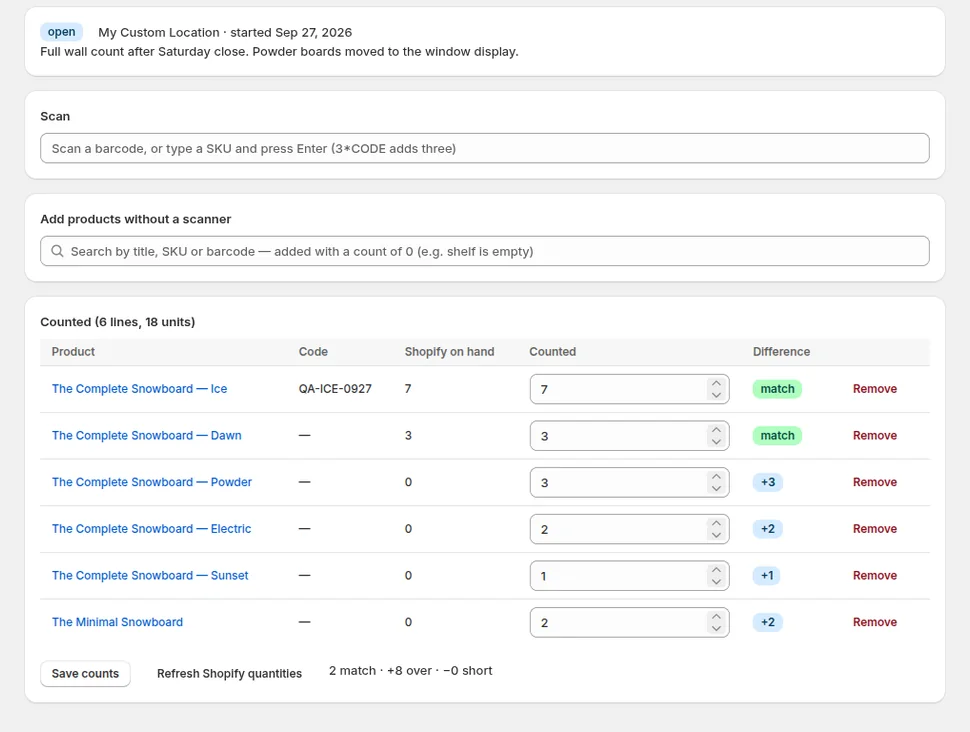
A count with a scanner is only as fast as the proportion of items that scan first time. Items that arrived pre-labelled from the manufacturer, items you relabelled with your own code last year, and items from a supplier you have since switched all had different codes on them, and only one of those was in Shopify. Every miss meant a search by name.
Once all three live on the variant, the counter scans whatever is on the item in front of them. The order of the list does not matter for scanning, because a lookup by barcode checks all of them. It matters only for what you print, which is why the convention above puts the printed code first and leaves the rest as aliases.
A side effect worth knowing: once a variant has more than one barcode, a stocktake export or report that shows only the barcode column is showing you the first one. If you reconcile against a supplier's list by their code, export the full Variant Barcodes column instead.
What Restock Ops does today
Restock Ops talks to Shopify's Admin API on version 2026-07, which predates the `barcodes` list, so the barcode the app shows on purchase order lines, receipts, stocktake lines and labels is the first one on the variant. Labels encode that first barcode as EAN-13, UPC-A or EAN-8 when it is a valid retail code and fall back to Code 128 of the barcode or SKU otherwise, which is another reason to keep the code you want printed in first position.
Scanning is more forgiving than that. When you scan or type a code in a stocktake, a purchase order or a receipt, the app searches Shopify by SKU and barcode, and Shopify's barcode filter now matches any barcode on a variant. A code that resolves to exactly one variant is counted or added straight away, whichever position it holds; a code that matches several variants, or a partial SKU, shows a short candidate list to pick from.
Reading the full list, showing every barcode on a line, and letting you choose which one a label prints are the next things on our list for this feature. Until then the convention does the work: print the first, scan any.
Adding a second barcode without changing your labels
- Open the variant in Products and find the barcode field. It now shows a list; your existing code is already first and will stay first.
- Click Add barcode, paste or scan the supplier's code, and pick its type (UPC for a 12-digit code, EAN for 13). If Shopify rejects it, the code on the carton has a misprint or you have mistyped it; check the digits before choosing Custom.
- Repeat for carton codes and marketplace identifiers. Leave your printed code in position one.
- For many products at once, export the product CSV, fill the Variant Barcodes column with the codes separated as the template shows, keeping the printed code first, and re-import. Or use the bulk editor with the barcodes column added.
- Scan a carton code in a Restock Ops stocktake or receipt to confirm it finds the right variant, then print one label from the Labels page and check it still carries the code you expect.
What this does not solve
- Pack quantities. A case barcode identifies the case, but Shopify does not know it holds twelve. Type the quantity, or keep a note on the supplier catalog line.
- Supplier SKUs. A supplier's alphanumeric item number is not a barcode and does not belong in this list; it belongs on the supplier catalog, which the supplier SKU post covers.
- Shared barcodes across variants. Shopify still expects a barcode to identify one variant. Two sizes with the same supplier code is a supplier problem, not something a longer list fixes.
If you receive deliveries against purchase orders and count with a scanner, Restock Ops is free to try on a development or live store. Add the supplier's code to a few variants first, scan a carton, and see how much typing disappears from the next delivery.
FAQ
How many barcodes can a Shopify variant have?
Up to 20, since September 8, 2026. Each can be typed as UPC, EAN, ISBN, GTIN or ASIN, in which case Shopify validates its format and check digit, or left as Custom for internal codes. Barcodes are added on the variant page, in the bulk editor, from the Shopify mobile app, or through the Variant Barcodes column in the product CSV.
Which barcode do labels and sales channels use when a variant has several?
The first one in the list. Shopify says that wherever a single barcode is expected, including channel feeds, apps reading the older barcode field and the CSV's Barcode column, the first barcode is used. Keep the code you want printed in first position and add the others after it.
Can Shopify POS scan a supplier's barcode instead of mine?
Yes, from POS 11.14 onwards. Once the supplier's code is added to the variant in the admin, staff can scan or search any of the variant's barcodes and POS pulls up the right product. Restock Ops stocktakes and receipts behave the same way: a scan of any associated barcode finds the variant.
Does a carton barcode count as a case of units when I scan it?
No. Shopify stores the barcode but not a pack quantity, so a scan of a case code identifies the variant and counts one unit. In a Restock Ops stocktake type the quantity in front of the code, for example 12*CODE, to add the whole case.
Try it on your store. Restock Ops adds purchase orders with partial receiving, supplier notes, cost history, barcode labels, scanner stocktakes and a reorder report on top of Shopify inventory. From $19/month, 14-day free trial.