Print barcode labels from a purchase order on Shopify
Print retail barcode labels for exactly what a supplier delivered, why Stocky's Dymo printing kept failing, and a printer-agnostic way to do it from a PO.
The moment a delivery lands on the back counter, someone needs to print barcode labels from the purchase order: one label per unit that actually arrived, with the price and a scannable barcode, so the boxes can go on the shelf before the shop opens. It sounds like the most basic job in retail, and for a lot of Shopify POS stores it has been the single most fragile step in the whole receiving workflow.
This post covers why label printing from a PO breaks so often, what you can do about it today with Shopify's own tools, and how Restock Ops handles it: labels are generated from the receipt or the PO, sized to common Avery sheets and Dymo rolls, and sent to whatever printer your computer already knows about through the normal browser print dialog. No driver plugin, no vendor web service.
The problem: labels are the step that fails
Look at the 1–2★ reviews on the Stocky review page and a pattern jumps out. Merchants who were otherwise happy with purchase orders and receiving gave up on the app because of labels. In November 2025 one wrote that the label feature “worked (poorly) for a few weeks and now can't find my printer”. In September 2024 another reported that it “won't see/find Dymo printer at all”. A September 2023 review explained that the newer DYMO LabelWriter 550 and 5XL “do not work with the older DYMO Label Software” the app relied on. In January 2024 a small shop wrote that they were “unable to print labels after receiving products” and were paying for a second app just to print.
The demand goes back further than that. A Shopify Community thread from July 2023 asks for exactly this: tick the items on a purchase order, choose how many labels you need, print. Shopify staff pointed to the Retail Barcode Labels app and the product list instead, and merchants coming from older POS systems replied that what took minutes there now took days.
Stocky shut down on 31 August 2026 (Shopify Community), so the specific DYMO integration is moot now. But the underlying failure modes are still there for any tool you pick next.
Why it happens
Three things go wrong, usually in combination.
- Printer-specific integrations. A web app cannot talk to a USB label printer directly. Tools that promise “one-click Dymo printing” do it through a locally installed helper or the vendor's own software. When the vendor deprecates that software (as happened with the DYMO Label Software versus DYMO Connect), or the browser blocks the local connection, the app simply cannot find the printer.
- Labels are a product-catalogue feature, not a receiving feature. Shopify's own Retail Barcode Labels app prints from the product list or from inside the app. You select each variant and quantity by hand; the help page states the app doesn't support bulk selection or CSV upload for variants and quantities, and prints in alphabetical order by product title. Nothing in that flow knows that a PO of 13 units just arrived as 6.
- Fixed label sizes. The same help page lists the supported sizes (a handful of Dymo, Avery 5160/5167 and Zebra codes) and says custom label sizes can't be added. If your shop stocked a different roll, you were on your own.
Shopify's barcode printers page adds two more constraints worth knowing before you buy hardware: the printer needs to be connected to a desktop computer with the required software even when you start printing from a POS device, and barcode label printing isn't supported directly from the Shopify POS app. The Dymo LabelWriter Wireless, for example, can't print from iOS or Android through the Retail Barcode Labels app.
The manual workaround with Shopify alone
If you have no app, this is the least painful route today. It works; it is just slow, and it gets slower with every partial delivery.
- Receive the delivery against the transfer for your purchase order in the Shopify admin, accepting the quantities that arrived (Creating an inventory transfer for your purchase order).
- Open the Retail Barcode Labels app and pick a template for your label stock. Only the sizes on the supported list are available.
- Search for each received variant, one at a time, and type the quantity that arrived. Keep the packing slip next to you; the app has no idea what the PO said.
- Print from a desktop browser to your connected printer, following Shopify's recommended print settings for your printer (paper size set to the exact label SKU, portrait orientation).
- Repeat for the next box when the back-order arrives. Because you re-enter quantities each time, keep a note of what has already been labelled.
How Restock Ops prints labels from a PO or receipt
Restock Ops keeps the purchase order and every receipt against it, so it knows both what you ordered and what has actually arrived. Labels come from one of two sources:
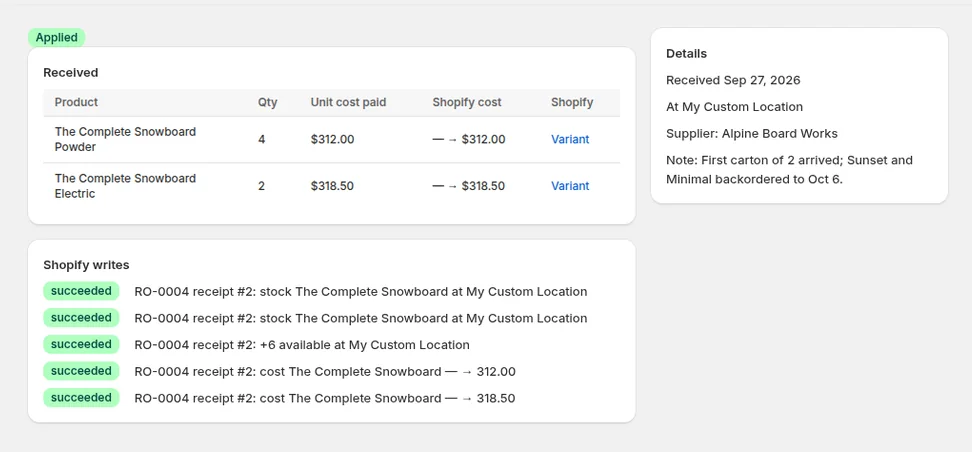
- From a receipt. Quantities default to what that receipt recorded. If the first carton had 4 Powder and 2 Electric boards, you get 4 and 2 labels — not the 13 on the PO.
- From the whole PO. Quantities default to received units once anything has arrived, and to ordered units before that, which is handy when you pre-print tags for a delivery you are unpacking.
You then choose a label preset and what goes on each label: product title, variant, price, SKU, and the barcode. Restock Ops reads the price and barcode live from Shopify when it builds the sheet, so a price change made that morning is what prints. The barcode symbology is picked automatically from the variant's barcode field: a valid 13-digit GS1 number prints as EAN-13, 12 digits as UPC-A, 8 digits as EAN-8, and anything else as Code 128. A variant with no barcode at all falls back to a Code 128 of its SKU, so nothing prints blank.
The presets in the current build are Avery 5160/8160 (30 per Letter sheet), Avery 5167/8167 (80 per sheet), Avery L7160 (21 per A4 sheet), Dymo 30252 address rolls and Dymo 30336 small multipurpose rolls. A start-offset field lets you begin partway down a sheet that already has a few labels used. Adjust a quantity on any line before printing if you want a spare or two.
Printing itself is deliberately boring. The label sheet is a self-contained HTML page with the right page size set in CSS; clicking Print opens your browser's normal print dialog. Any printer your operating system can already print to — a Dymo LabelWriter with Dymo's own driver, a Brother QL, a Zebra, or the office laser printer for Avery sheets — is a valid target, because from the browser's point of view it is printing a document, not talking to a barcode printer. There is no Restock Ops helper to install and no vendor web service to break. The trade-off is honest: you pick the printer and confirm the paper size in the print dialog yourself, the same way Shopify's own help pages describe for the Retail Barcode Labels app.
Labels are one screen in a receiving flow that also does partial receiving and keeps the cost history for each receipt, so “receive the six boxes that came, print six boxes' worth of tags” is one pass, not three tools.
What Restock Ops does not do (yet)
- It does not generate new barcodes for products that have none. Assign barcodes in Shopify (or keep using SKUs as Code 128) first.
- Custom label dimensions are not in the preset list. If your roll is not one of the five presets above, tell us the size.
- It has not been tested against every printer model. The design avoids printer-specific code, but you should still run a test sheet during the free trial, exactly as merchants in the shutdown threads recommend for any replacement.
FAQ
Can I print labels only for the items that arrived, not the whole PO?
Yes. Choose the receipt as the label source and the quantities default to what that receipt recorded. You can still edit any quantity before printing.
Do I need a Dymo printer?
No. Restock Ops prints through the browser's print dialog, so any printer your computer can print to works: Dymo or Brother rolls with the manufacturer's driver, or a normal desktop printer for Avery sheets. Match the preset to your label stock and confirm the paper size in the dialog.
Which barcode types are supported?
EAN-13, UPC-A and EAN-8 when the variant's barcode is a valid GS1 number, otherwise Code 128. Variants without a barcode print their SKU as Code 128.
Can I print from an iPad?
The label sheet opens in the browser's print dialog, so it depends on whether your tablet can print to that printer (AirPrint or the manufacturer's app). Shopify's barcode printer help notes that several Dymo and Zebra models need a desktop connection, so we recommend printing labels from the back-office computer.
Does Restock Ops replace Shopify's Retail Barcode Labels app?
For labels tied to a delivery, yes: it knows the received quantities. For one-off reprints of a single product, Shopify's free app is still fine and the two do not conflict, since both read the barcode stored on the Shopify variant.
Try it on your store. Restock Ops adds purchase orders with partial receiving, supplier notes, cost history, barcode labels, scanner stocktakes and a reorder report on top of Shopify inventory. From $19/month, 14-day free trial.
Sources
- Stocky 1–2★ reviews, Shopify App Store (accessed 28 Sep 2026)
- Shopify Community: Can we print retail barcode labels directly from purchase orders? (Jul 2023)
- Shopify Community: Stocky App Going Away after August 31 2026
- Shopify Help Center: Retail Barcode Labels app
- Shopify Help Center: Barcode printers